Free Fire on PC in 2026: Emulator Guide, Safety, and Performance Tips
Play Free Fire on PC safely with an emulator. No ban for clean play; compare BlueStacks, LDPlayer, MeMu, Nox for best performance.
Playing Garena Free Fire on a PC offers undeniable advantages: a larger screen, no battery drain, and the precision of mouse and keyboard that mobile opponents cannot match. Yet Free Fire has no official PC client, so Windows users must rely on Android emulators. In 2026, the emulator landscape has matured, but questions remain. Will Garena ban you for playing on PC? Which emulator delivers the best performance? And how do you set everything up correctly? This guide answers those questions and more, drawing on the latest updates and community-tested configurations.
The most critical concern for any player considering the switch is account safety. Garena officially recognizes emulator players and does not ban them simply for using an emulator. Instead, the company separates them from mobile players through a dedicated Emulator Matchmaking Pool. In ranked Battle Royale and Clash Squad modes, emulator users are matched only against other emulator users. If even one squad member uses an emulator, the entire team is placed in the emulator pool. The only real ban risk comes from cheating—hacks, macros, or modified APKs. Clean emulator play is completely safe. So, will you get banned just for playing on PC? No, as long as you play fair.
Before installing any emulator, check your system specifications. The baseline requirements are straightforward, but one often-overlooked setting is Virtualization (Intel VT-x or AMD-V), which must be enabled in your BIOS. If an emulator crashes on launch, this is almost always the culprit. Restart your PC, enter BIOS, locate the virtualization option, and enable it. Minimum specs typically include 4 GB of RAM, a dual-core processor, and at least 10 GB of free storage. Running below these will cause lag or crashes.
Four emulators dominate the Free Fire scene in 2026: BlueStacks, LDPlayer, MeMu, and Nox. Each has strengths and weaknesses. BlueStacks is the most popular worldwide, known for its polished keymapping tool and stable performance on mid-range hardware. It boots in about five seconds on an SSD. However, it can be heavier on RAM than alternatives. LDPlayer 9 is a favorite for performance per resource, supporting up to 120 FPS and running on Android 9, which is compatible with current Free Fire builds including the Jujutsu Kaisen update. MeMu supports multiple Android versions and offers a Multi-Instance Manager for running two accounts simultaneously, though it feels slightly heavier on weaker machines. Nox is lightweight and beginner-friendly but has fallen behind in update frequency; it remains a viable option for very old PCs with as little as 2 GB of RAM.
The installation process is nearly identical across all emulators. First, download the emulator from its official website to avoid bundled malware. Second, run the installer and enable Virtualization if prompted. Third, open the emulator and sign in with your Google account. Fourth, search for "Garena Free Fire" or "Free Fire MAX" in the Play Store and install it. Fifth, launch the game and log in with your existing Garena, Google, or Facebook account—your progress syncs automatically. Finally, configure in-game graphics settings. On an 8 GB RAM machine, you can push to HD or Ultra; on 4 GB, stick to Low or Medium to maintain frames above 60.
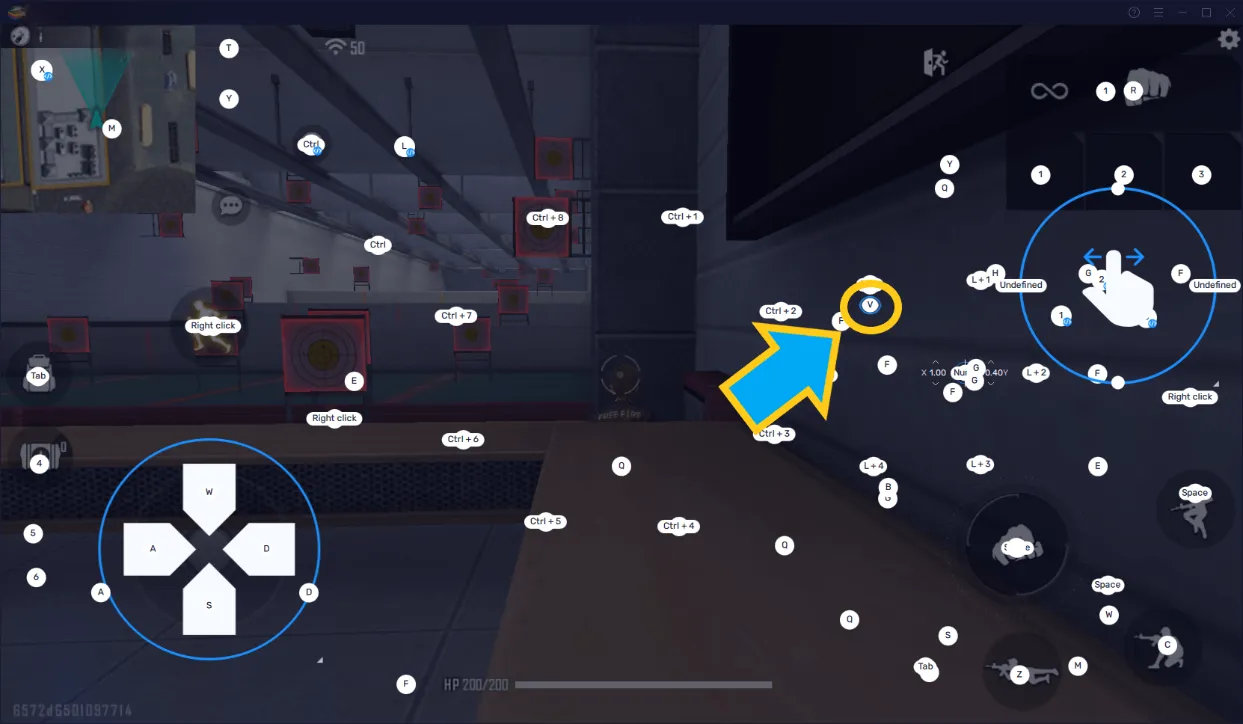
Keymapping is where PC players gain a genuine edge. A well-designed layout lets you move, aim, and shoot simultaneously in ways impossible on mobile. Recommended bindings include WASD for movement, mouse for aiming and shooting, and separate keys for crouch and prone. Binding character skills to a thumb mouse button allows activation mid-gunfight without lifting your movement hand. In BlueStacks, access the keymapping tool with Ctrl + Shift + A; in LDPlayer, click the keyboard icon in the right sidebar; in MeMu, use the keyboard button on the toolbar. A few practical tips: set crouch and prone to different keys for faster transitions, match your emulator's FPS cap to your game's (e.g., 60 FPS for both) to avoid microstutter, and adjust mouse sensitivity gradually—start at default, play three matches, then tweak.
Performance recommendations vary by hardware. For a 4 GB RAM system with integrated graphics, LDPlayer 9 or NoxPlayer with Low graphics is best. For 8 GB RAM and a mid-range GPU, BlueStacks 5 or LDPlayer 9 can handle Medium to High settings at a stable 60 FPS. For 16 GB RAM and a dedicated GPU, BlueStacks 5 or MeMu can push maximum graphics at 90–120 FPS. For most players, LDPlayer 9 is the safest bet—it performs well across 4–8 GB RAM, receives regular updates, and handles newer Free Fire builds without issues. BlueStacks is superior if you want the smoothest UI and keymapping experience and have RAM to spare.
Frequently asked questions reveal common concerns. Can you use your existing Free Fire account on PC? Yes—log in with the same Google or Garena account, and all characters, skins, and rank carry over. Will you face mobile players in ranked? No, the Emulator Matchmaking Pool ensures you only play against other emulator users in ranked BR and CS. Can you play Free Fire MAX on PC? Yes, it installs on any emulator, but requires at least 8 GB RAM and a mid-range GPU for good performance. What if your emulator crashes on launch? Check BIOS virtualization settings first, then update GPU drivers and Windows. Is BlueStacks safe? Yes, it is legitimate software used by over 100 million players—always download from the official site. Can you play on a laptop? Absolutely, as long as it meets minimum requirements; a Core i5 with 8 GB RAM and Intel Iris graphics can run Free Fire at Low-to-Medium settings at 60 FPS.
As 2026 progresses, emulator technology continues to improve, but the fundamentals remain unchanged. Play clean, choose the right emulator for your hardware, and fine-tune your keymapping. The advantages of PC play—better aim, smoother performance, and no battery limits—are well worth the setup effort. Whether you are a ranked grinder or a casual player, the emulator route offers a legitimate and powerful way to experience Free Fire on a larger stage.